The right schedule of the day template depends on how your day is built. Pick an hourly grid if appointments set your day, a time-blocking sheet if you need long stretches of focus, a shift layout if you manage staff, and a simple routine chart if the schedule is for a child. All seven layouts below are free, editable, and ready to print.
Most people searching for a daily template schedule hit the same wall. They find a pretty design that is locked as an image, a PDF they cannot edit, or a download that asks for an email address first. Then the times do not match their day, and they end up redrawing the grid by hand.
This article sorts daily schedule templates by use, so you can match one to your day in a minute. At Unique Printable we publish free Word and Excel templates with no sign-up, so we point out which of our files fit each layout, what to change first, and how to open them in Google Docs or Google Sheets. A short guide at the end shows how to fill in a day, and a table helps you choose.
1. Hourly daily schedule template
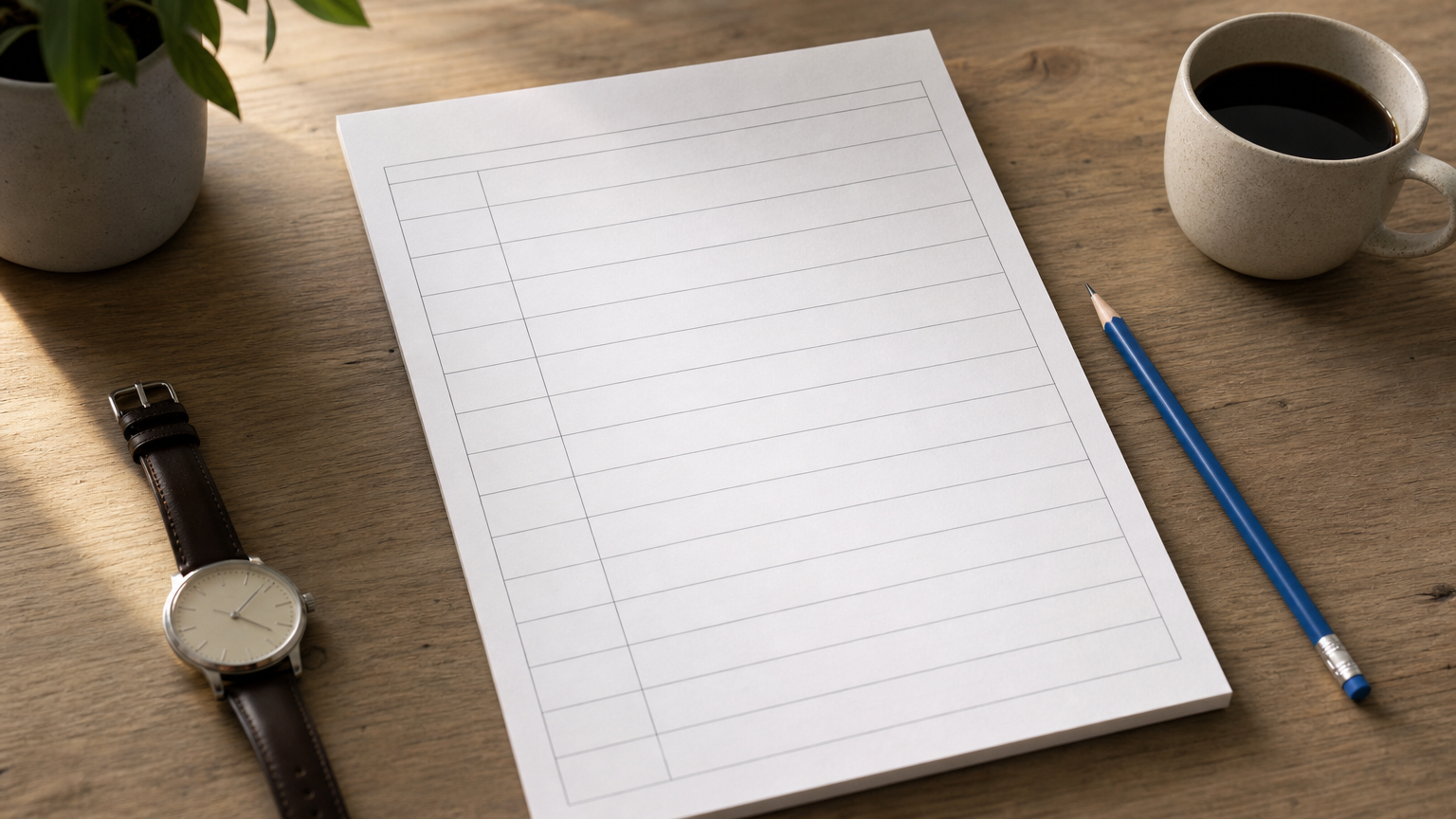
An hourly schedule is a table with the time of day down the left and one row for each hour or half hour. It is the most common daily schedule template because it works for almost any day. Our Free Daily Schedule Templates set has 10 Word files, and several of them are hourly planners.
What the layout includes
Expect three working parts in a time grid. The structure is simple enough that you can read it at a glance in the middle of a busy day.
- A time column running from your wake-up hour to bedtime
- A task or appointment column with one row per slot
- A notes box for calls, errands and reminders
The times in our files are plain text in a Word table. You can retype 7:00 as 5:30 or 10:00 without touching any formula or locked field.
Who it suits and how to set it up
This layout suits anyone whose day is shaped by outside commitments, such as clinic visits, client calls, classes or deliveries. Set your waking hours once, then print as many copies as you need and fill them in by hand each morning.
The files are A4 by default. For US Letter, change the size in Page Setup and the table widths adjust automatically. If you do not have Word, upload the .docx file to Google Drive, right-click it and choose Open with → Google Docs. To share a copy, export it as a PDF from the program you edit it in.
An hourly grid works best when you retype the times to match your real waking day.
2. Time-blocking daily schedule template
A time-blocking template replaces single tasks with larger blocks of time, usually 60 to 120 minutes, each given a theme. Instead of writing "reply to Sam" at 10:00, you write "email and admin" from 10:00 to 11:00 and handle everything of that type inside the block. Our daily set includes time-blocking sheets.
What the layout includes
The grid looks like an hourly planner, but the rows are merged or spaced so a block can stretch across several hours. The useful extras are small.
- Block labels such as deep work, meetings, admin and breaks
- A line under each block for the one result you want from it
- A buffer row at the end of the day for overflow
A buffer row matters more than it looks. Days rarely run to plan, and an empty hour at the end absorbs the overruns so they do not push into the evening.
Who it suits and how to set it up
Writers, designers, developers, students and freelancers get the most from this format. Their work needs uninterrupted focus, and a block on paper gives you a reason to decline a request until the block ends.
Start with the longest block first. Place your hardest task in the part of the day when you think best, then fit meetings and admin around it. Keep blocks to 90 minutes or less for demanding work, and leave 10 to 15 minutes between blocks. Print the template once and draw the blocks in pencil, so you can rearrange them as the day changes.
Block time by type of work, not by individual task, and the day stops feeling like a list of interruptions.
3. Daily schedule with a to-do list
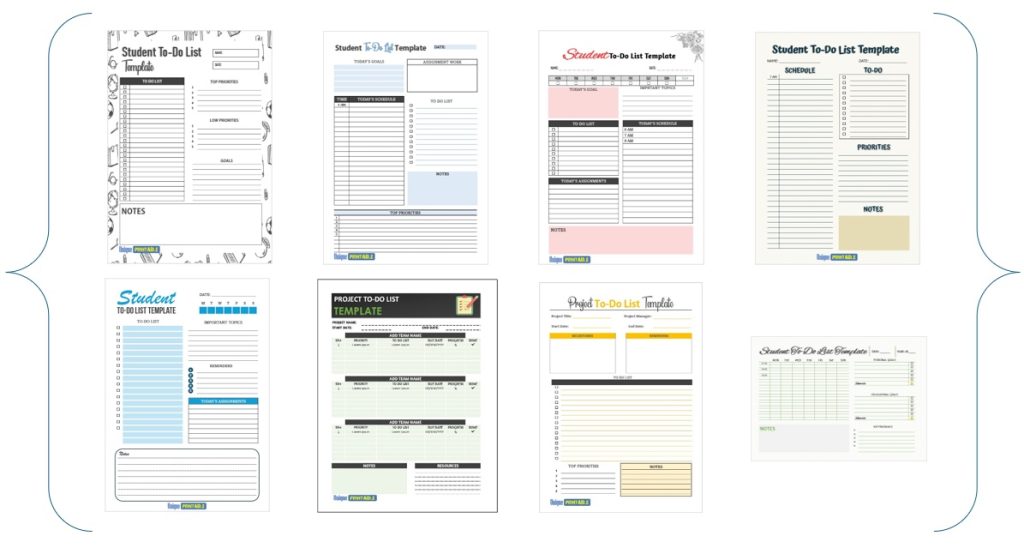
This layout pairs a time grid with a priority list, so you see what must happen and when it will happen on the same page. It answers a problem that plain hourly planners have: they show hours but not importance. Our Free Daily To-Do List Templates are 10 Word files that help you break the day into smaller tasks, prioritize them and assign time frames.
What the layout includes
A good combined sheet divides the page in two. The left side holds the schedule, and the right side holds the list.
- A "top three" box for the tasks that make the day a success
- A checklist for smaller tasks with a check box beside each
- A time column or time-frame field beside each task
The top three box is the most useful part. When you must choose, it tells you what to protect.
Who it suits and how to set it up
Office workers, managers, project leads and small business owners with long task lists will like this format. It also suits students at exam time, who need to see both deadlines and daily hours together. The work-day layouts in our daily schedule set follow a similar pattern.
Write the top three first, then place each one in the grid before you add anything else. Only after that should you add small tasks. If the checklist overflows the page, move the extra items to tomorrow’s sheet instead of shrinking the font. A page that is too full stops being read.
Put your top three tasks on the grid before anything else, and the small items will fit around them.
4. Employee shift and work-day schedule
A staff schedule shows who works, when, and where for a given day. It shifts the question from "how do I spend my day" to "who covers which hours", so the grid is built around names instead of tasks. Our Free Employee Work Schedule Templates include 10 files in Word and Excel.
What the layout includes
The set covers weekly rotas, monthly rosters, rotating shift patterns, availability forms and leave trackers. A day view built from one of these usually has these parts.
- Staff names down the side
- Shift start and end times across the top
- A row or column for breaks, roles or stations
The availability form and the leave tracker are worth keeping beside the schedule. They let you see conflicts before you publish the rota, not after someone calls in.
Who it suits and how to set it up
Small business owners, shop and café managers, office managers and team leads are the natural users. Set your staff names and operating hours once, save the file as a master copy, then use Save As for each new period. Add your own logo and company name before printing, since commercial use is allowed.
Choose the Word version if you want to print and pin the sheet on a wall. Choose Excel if you prefer to copy rows between weeks and keep a tidy grid. Post the schedule at least a few days ahead where possible, so staff can raise problems early.
A staff schedule is a promise to your team, so build it from availability, not from guesses.
5. Teacher and student daily schedule
A school day schedule follows bells and periods, not free hours. Teachers need one grid for lessons, duties and marking, while students need one for classes, homework and revision. Two of our sets cover this: Free Teacher Schedule Templates with 10 files in Word and Excel, and Free Study Schedule Templates with 14 Word files.
What the layout includes
The teacher set covers the weekly timetable, daily plan, duty rosters, marking deadlines and term overviews. The study set includes weekly timetables, exam countdowns, subject planners and term overviews. For a single day, use these parts.
- Period or class times in the first column
- Subject, room or group in the main cells
- A marking, homework or revision row at the end of the day
Wider grids in the teacher set are landscape on A4, which keeps long period names readable.
Who it suits and how to set it up
Teachers, tutors and students from middle school through college can use these files. The key step is to set period times once, since they rarely change during a term. After that, you only edit the subjects.
Students should do the opposite of teachers with the empty slots. Leave the study blocks bold and visible, and schedule the hardest subject first. If your school uses Letter paper, change the size in Page Setup and the tables adjust. Files open in Google Docs or Google Sheets after you upload them to Drive, depending on whether they are Word or Excel versions.
Fix your period times once for the term, and each day becomes a quick fill-in job.
6. Kids’ daily routine planner
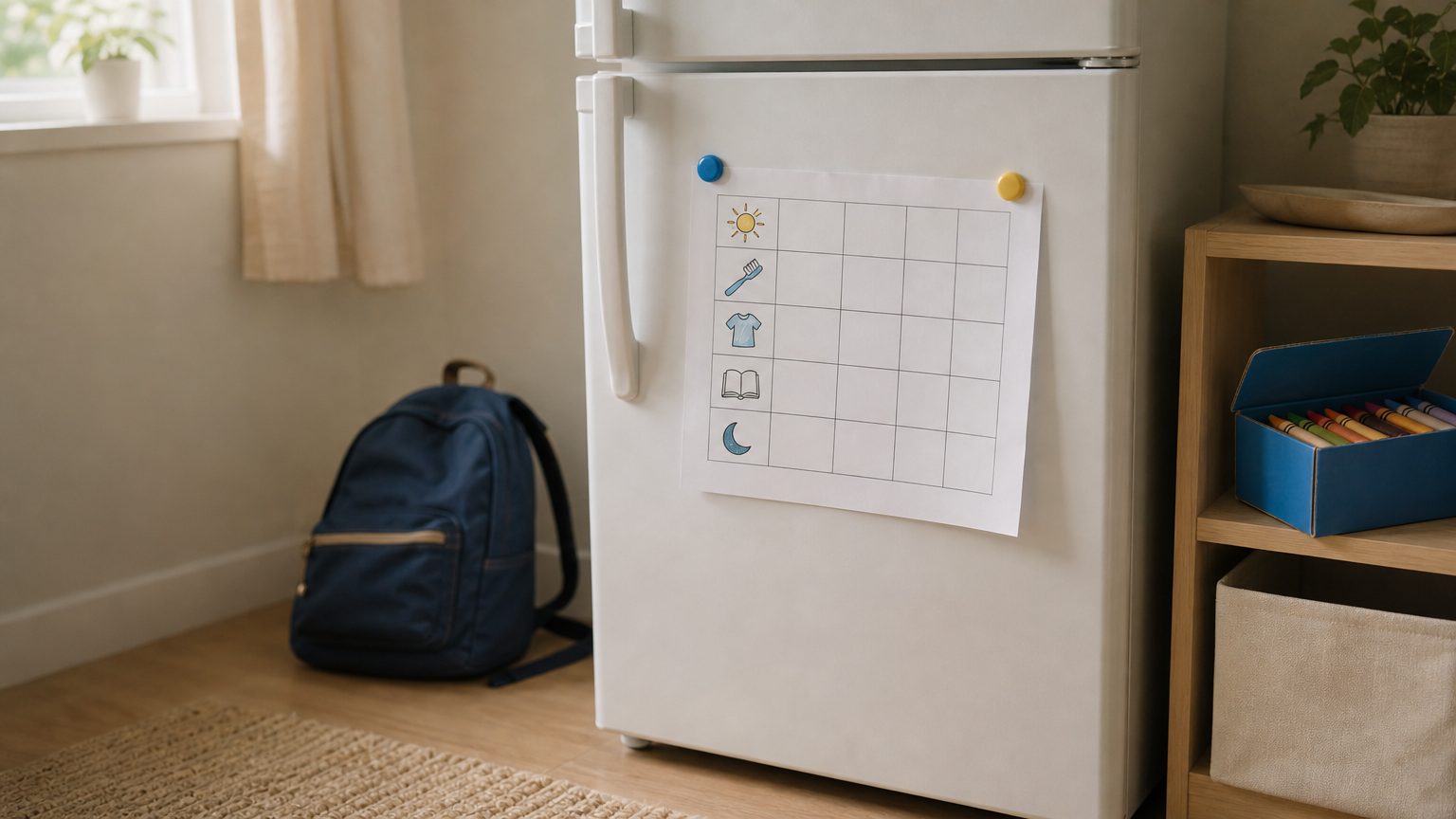
A children’s routine planner shows the order of the day in short steps a child can follow without help. It is a schedule for a reader who may not tell time well, so the layout does less than an adult grid. Our Free Daily Schedule Templates set includes routine planners for children.
What the layout includes
The best versions are sparse and clear. Too many rows turn the chart into an obstacle instead of a help.
- Three or four parts of the day: morning, after school, evening, bedtime
- One short line per step, such as "brush teeth" or "pack school bag"
- A tick box beside each step
Because the text is editable, you can write steps in your own words and use the times that suit your home. Add stickers or small drawings by hand once printed if your child likes them.
Who it suits and how to set it up
Parents, grandparents, childminders and teachers can all use it. It works best for children who need help with transitions, such as getting ready for school or settling at bedtime. Involve the child when you fill it in, since a routine they helped write is easier to keep. The fewer the steps, the better: five to seven is plenty for one part of the day.
Print the sheet and put it at the child’s eye level, such as on the fridge or the bedroom door. Make a fresh copy each week so the tick boxes start clean. Review it after two weeks and remove any step that nobody needs a reminder for.
A child’s routine chart should show the order of the day in as few steps as possible.
7. Spreadsheet schedule for Excel or Google Sheets
A spreadsheet day schedule puts times in rows and people, rooms or categories in columns, so you can copy, sort and share it. A day-to-day schedule template in a spreadsheet is the right choice when the plan involves more than one person, or when you will reuse it across many days.
What the layout includes
The grid is the same idea as the hourly planner, but each cell is a spreadsheet cell. That brings a few useful habits.
- Time slots in the first column that you fill down with a drag
- One column per person, room or project
- Colour fills to mark meetings, breaks and deadlines
Colour coding is the quickest way to make a busy sheet readable. Use three or four colours and no more.
Who it suits and how to set it up
Teams, office managers, event organizers and anyone who shares a plan will find a spreadsheet easier than paper. Among the sets above, the Excel files are in the Employee Work Schedule and Teacher Schedule sets, and the Excel versions hold their layout when printed. Layout-only documents stay in Word, while anything that calculates is in Excel.
To use a file in Google Sheets, upload it to Google Drive, right-click it and choose Open with → Google Sheets. It will stay editable by anyone you share it with, and you can still print it or export it as a PDF. Save a clean master copy first, then duplicate it for each new day or week.
Choose a spreadsheet when more than one person needs to read, edit or copy the schedule.
How to fill in a schedule for the day
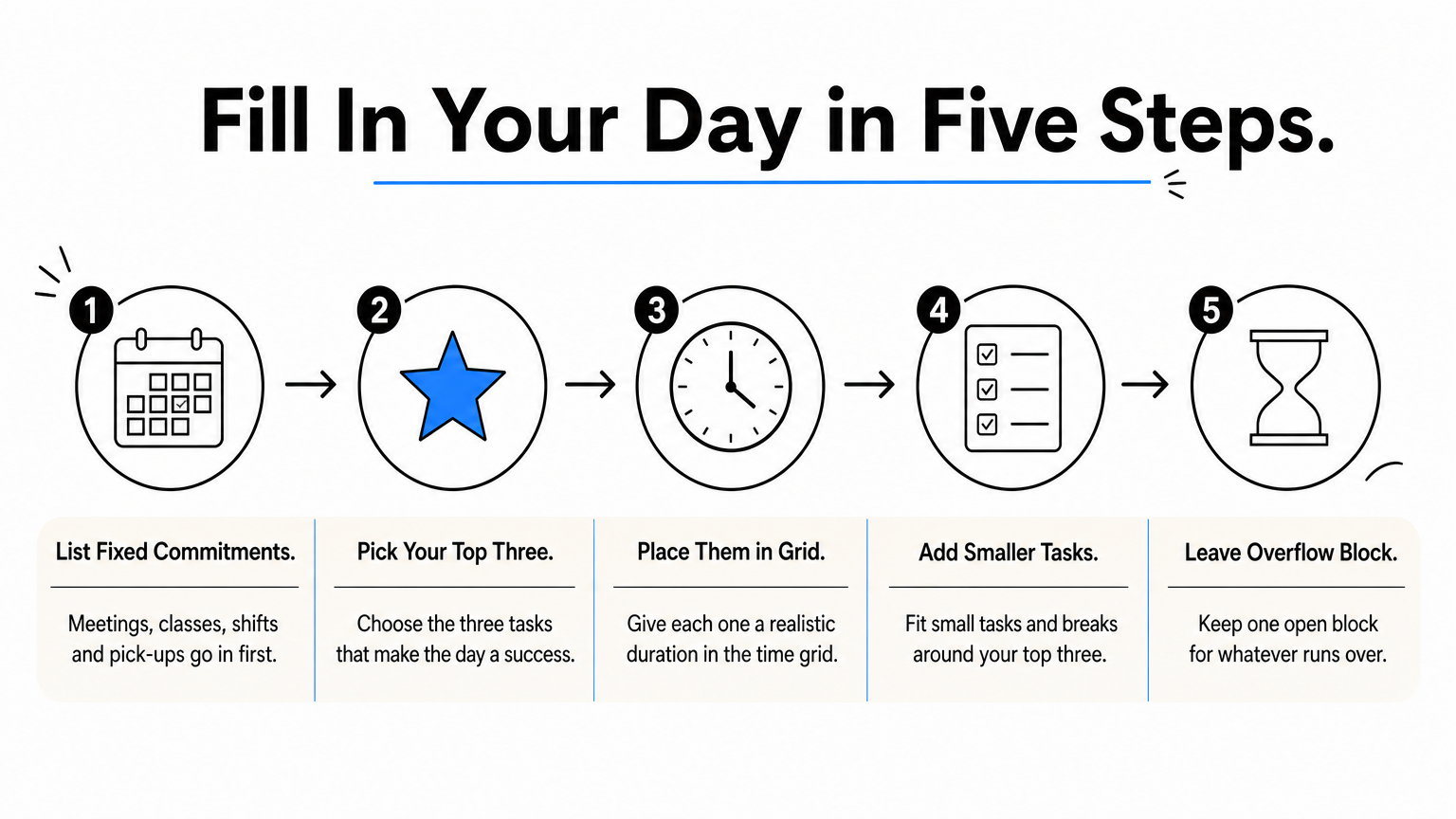
Fill in a daily schedule by listing fixed commitments first, then your top priorities, then everything else. The order matters more than the tool, and it works on paper, in Word, or in a spreadsheet.
Fill in a daily schedule in five steps
- Write down fixed commitments, such as meetings, classes, shifts and pick-ups.
- Choose your top three tasks for the day.
- Place those three in the grid with a realistic duration.
- Add smaller tasks and breaks around them.
- Leave one open block for overflow.
Here is a worked example for an 8:00 to 5:00 workday with a one-hour lunch, which gives you eight working hours:
- Deep work: two 90-minute blocks, 3 hours
- Meetings: 1.5 hours
- Email and admin: two 30-minute slots, 1 hour
- Smaller to-do items: 1.5 hours
- Open buffer: 1 hour
That adds up to 3 + 1.5 + 1 + 1.5 + 1 = 8 hours. If the day is full before you reach the buffer, you have planned too much, so cut a task.
Match the layout to your day
If you are still unsure which template to start from, use this table.
| Layout | Best for | File format |
|---|---|---|
| Hourly | Appointment-driven days | Word |
| Time-blocking | Focus work and freelancing | Word |
| Schedule with to-do list | Long task lists | Word |
| Employee shift | Staff coverage | Word and Excel |
| Teacher and student | Periods, marking, revision | Word, plus Excel for teachers |
| Kids’ routine | Morning and bedtime steps | Word |
| Spreadsheet | Shared or reused plans | Excel, opened in Google Sheets via Drive |
Whichever you pick, change the times first, print one copy, and use it for a full day before you adjust anything else.
Print your first daily schedule today
The best daily template is the one whose grid matches your day. Hourly layouts suit appointment-heavy days, time blocks suit focus work, shift sheets suit staff coverage, and a short routine chart suits children. Whatever you choose, fix the times first, put your top priorities in before small tasks, and keep an open block for overflow.
You do not need an account or an email address to get started. Our files are free for personal or commercial use, you can add your own branding, and you can open them in Word, Excel, Google Docs, Google Sheets or LibreOffice. Browse the free daily schedule templates, download the layout that fits your day, and print it before tomorrow starts.