To use an invoice in Word template, open Word, go to File > New, search "invoice", and create a document from the template you like. Replace the placeholder text with your business and client details, list your work with quantities and rates, check the total, and save a master copy. Then export each finished invoice to PDF and email it. You can also download a free .docx invoice from Unique Printable and follow the same steps from there.
The problem is that most people get stuck on the details, not on opening Word. Templates ship with dummy text, odd fonts and tables that break when you add a row. Word does not recalculate your totals, so one typo can put a wrong number in front of a client. And if you send a .docx, the layout can shift on someone else’s screen.
This guide walks you through four steps: finding the right template, filling in every field, branding it and saving a reusable master, and checking, exporting and sending it. It includes a worked example with real arithmetic and a ready-to-copy email. We publish free editable invoice templates in Word and Excel at Unique Printable.
What a Word invoice template can and cannot do
A Word invoice template is a pre-built layout with a header, a client block and an items table. You overwrite the placeholder text and print it or send it as a PDF. It works well for freelancers, tradespeople and small firms that send a few invoices a month.
When Word is the right tool
Word is a good fit when your invoices are mostly text and a short table. You control the layout, the logo sits where you want it, and any client can open the result. A template saves you from rebuilding the same table every time you bill someone.
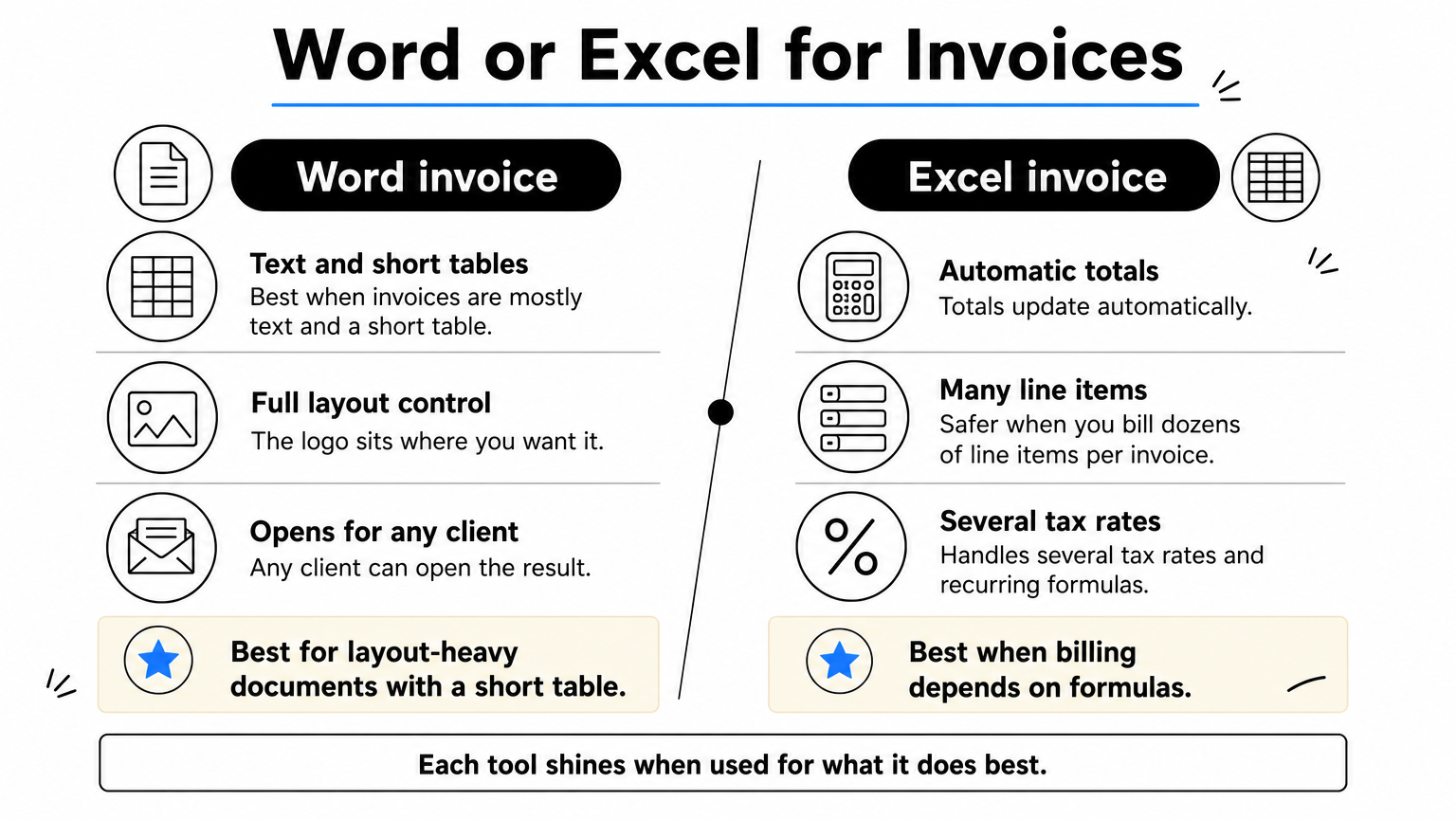
Word is a weaker fit when billing depends on formulas. Word does not recalculate totals as you type, so quantity times rate and tax are your job. If you bill dozens of line items per invoice, an Excel file is the safer choice. Step 4 covers that switch.
What you need before you start
Gather these details first so you only open the file once:
- Your business name, address, phone, email and logo file
- Your client’s billing name, address and email
- What you did, how many hours or units, and your rate
- Your tax rate, if you charge tax
- Payment terms, such as "due in 30 days", and how you accept payment
You do not need Microsoft 365 to follow along. Any recent desktop version of Word works, and so do Google Docs (upload the .docx to Google Drive) and LibreOffice.
A Word invoice is a layout tool, so you supply the math and the checking.
Step 1. Find or download a template
Word has built-in invoice templates, and you can also download a free .docx file. Use whichever route gets you a layout you will not have to fight.
Open Word’s built-in templates
To find invoice templates in Word:
- Open Word and select File, then New.
- Type "invoice" into the Search for online templates box and press Enter.
- Click a design to preview it.
- Select Create to open it as a new document.
Pick a design with a clear items table and a visible total box. Avoid layouts with heavy graphics, since they are harder to edit and print poorly.
Download a trade-specific .docx
If the built-in designs feel generic, download a free Word invoice template that matches your line of work. Unique Printable files are free, need no sign-up or email address, and you may use them commercially. Each download lists its file format. The files default to A4. To switch to US Letter, go to Layout > Size > Letter before you add content.
| Template set | Best for | Formats |
|---|---|---|
| Hourly service invoices | Anyone billing by the hour | Word |
| Consultant invoices | Consultants billing for services | Word and Excel |
| Commercial invoices | Exporters shipping goods (6 templates, with room for HS codes, country of origin and shipping terms) | Word |
| Attorney invoices | Lawyers stating hourly, flat or contingency fees | Word and Excel |
| Painting invoices | Painters billing work, materials and labor | Word and Excel |
| Cleaning services invoices | Cleaning businesses | Word |
Choose the set closest to your trade. Trade-specific files already have the right rows, so you edit less.
Start from the template that matches how you bill, not the prettiest one.
Step 2. Fill in every invoice field
Fill in the header, the client block, the line items and the payment terms, in that order. A complete invoice gets paid faster because the client has no questions to ask.
Complete the fields every invoice needs
Replace each placeholder with real information. Leave nothing in brackets.
| Field | What to enter | Example |
|---|---|---|
| Invoice number | A unique, sequential number | 2026-014 |
| Invoice date | The day you send it | December 1, 2026 |
| Due date | Matches your payment terms | December 31, 2026 |
| Bill to | Client name, address, email | Harbor Dental, 14 Main St. |
| Description | Specific work, not "services" | Homepage copy, first draft |
| Quantity and rate | Hours or units times price | 4 hours at $60.00 |
| Tax | Your rate, shown as its own line | 8% |
| Payment terms | Deadline, methods, late fee | Net 30, bank transfer or check |
Spell out the month in dates. "12/01/2026" reads as January 12 to some clients. Describe the work specifically, because a vague line invites a question and a delayed payment.
Work through a sample invoice
Here is how the items table looks for a freelance writer billing hourly. The tax rate is an example only. Your rate depends on your state and on whether your service is taxable.
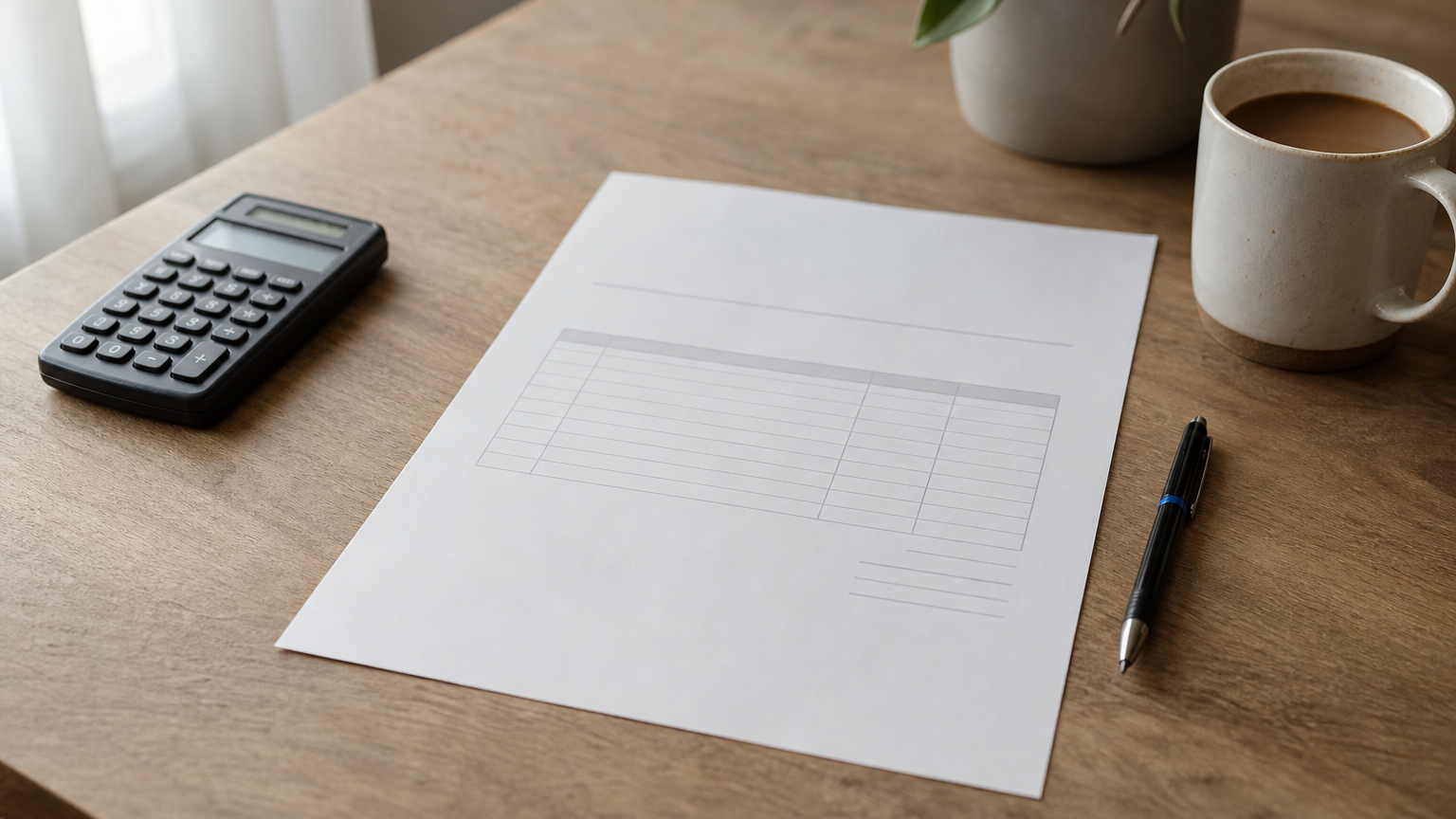
| Description | Hours | Rate | Amount |
|---|---|---|---|
| Homepage copy, first draft | 4 | $60.00 | $240.00 |
| Two rounds of revisions | 2 | $60.00 | $120.00 |
| Subtotal | $360.00 | ||
| Sales tax (8%) | $28.80 | ||
| Total due | $388.80 |
The math is 6 hours times $60 for $360, then $360 times 0.08 for $28.80 in tax, which brings the total to $388.80. Word’s Table Layout tab has a Formula command, but its results do not refresh until you select the field and press F9. For most people, typing the numbers and checking them twice is simpler.
A specific description and a visible total do more for your payment speed than any design.
Step 3. Brand it and save a master copy
Add your logo and colors once, then save the file as a master so every future invoice starts clean. This is the step that turns a one-off document into a reusable template.
Add your logo and colors
Click the placeholder logo, delete it, and insert your own through Insert > Pictures. Resize it with a corner handle so it keeps its proportions. Then change the heading color through Design > Colors, or select the text and pick a color from the Home tab.
Keep it plain. One logo, one accent color and one font look professional and print cleanly. Do not stretch the header taller to fit a big logo, because it pushes the items table onto a second page.
Save the master and number each copy
Once the layout is right, delete the sample line items and save the file as "Invoice-Master.docx". Do not send this file. For every new job, open the master, choose Save As, and name the copy with the invoice number and client, such as "Invoice-2026-014-HarborDental.docx".
This habit protects you from two common mistakes. You never overwrite the master with a client’s data, and you never reuse an invoice number. Sequential numbers keep your records searchable and make it obvious if one is missing.
Edit the copy, never the master.
Step 4. Check, export to PDF and send
Before you send, verify the numbers, convert the file to PDF, and email it with a clear subject line. A PDF locks your layout and keeps the client from accidentally editing a figure.
Check the details
Run through this list with the finished invoice open:
- Every quantity times rate matches its amount
- The subtotal, tax and total add up
- The invoice number is new and the due date fits your terms
- The client’s name and email are spelled correctly
- No placeholder text is left anywhere, including the header and footer
Export and send
In Word, choose File > Save As, pick PDF as the file type, and save. Attach the PDF, not the .docx. Put the business name, invoice number and amount in the subject line so the client can find it later. You can copy this message:
Subject: Invoice 2026-014 from [Your Business]: $388.80 due December 31

Hi [Client name],

Attached is invoice 2026-014 for homepage copy and revisions.
The total is $388.80, due December 31, 2026.

You can pay by bank transfer or check. Details are on the invoice.
Let me know if you have any questions.

Thanks,
[Your name]
Switch to Excel when totals get complex
If your invoices have many line items, several tax rates or recurring formulas, use an Excel file so the totals update automatically. Unique Printable’s consultant, attorney and painting invoice sets include Excel versions. Word stays the better choice for layout-heavy documents with a short table.
Send a PDF, and make the subject line do the filing for your client.
Your next invoice takes minutes
Using an invoice in a Word template comes down to four moves: pick the right template, fill in every field specifically, save a branded master, and check the math before you export a PDF. Do those once and each later invoice is a quick Save As and a few edits.
If you do not want to dig through Word’s built-in designs, you can browse a full set of free invoice templates for hourly work, consulting, law, painting, cleaning and exports. They are editable Word and Excel files, free for commercial use, with no sign-up.