The quickest way to get a Google documents invoice template is to build one master invoice in Google Docs, fill in your business details once, and use File > Make a copy for every new client. Add the line items, check the total, export a PDF, and send it. The first invoice takes about 15 minutes. After that, each one takes about two.
The catch is that Google Docs has no dedicated invoice in its template gallery. You end up on pages that push paid invoicing apps, or you open a shared file, click "Make a copy," and have no idea what to change. A missing invoice number, due date, or payment instruction is what causes late payments and awkward follow-up emails.
This guide covers four steps: getting a template into Drive, adding your details, entering line items with a worked example, and exporting and sending the file. You also get a copy-ready layout, an email you can paste, and the Google Sheets option for automatic totals. Unique Printable keeps a free library of editable invoice templates in Word and Excel that open in Google Docs and Sheets, so you can start from a finished layout if you prefer.
What a Google Docs invoice needs before you start
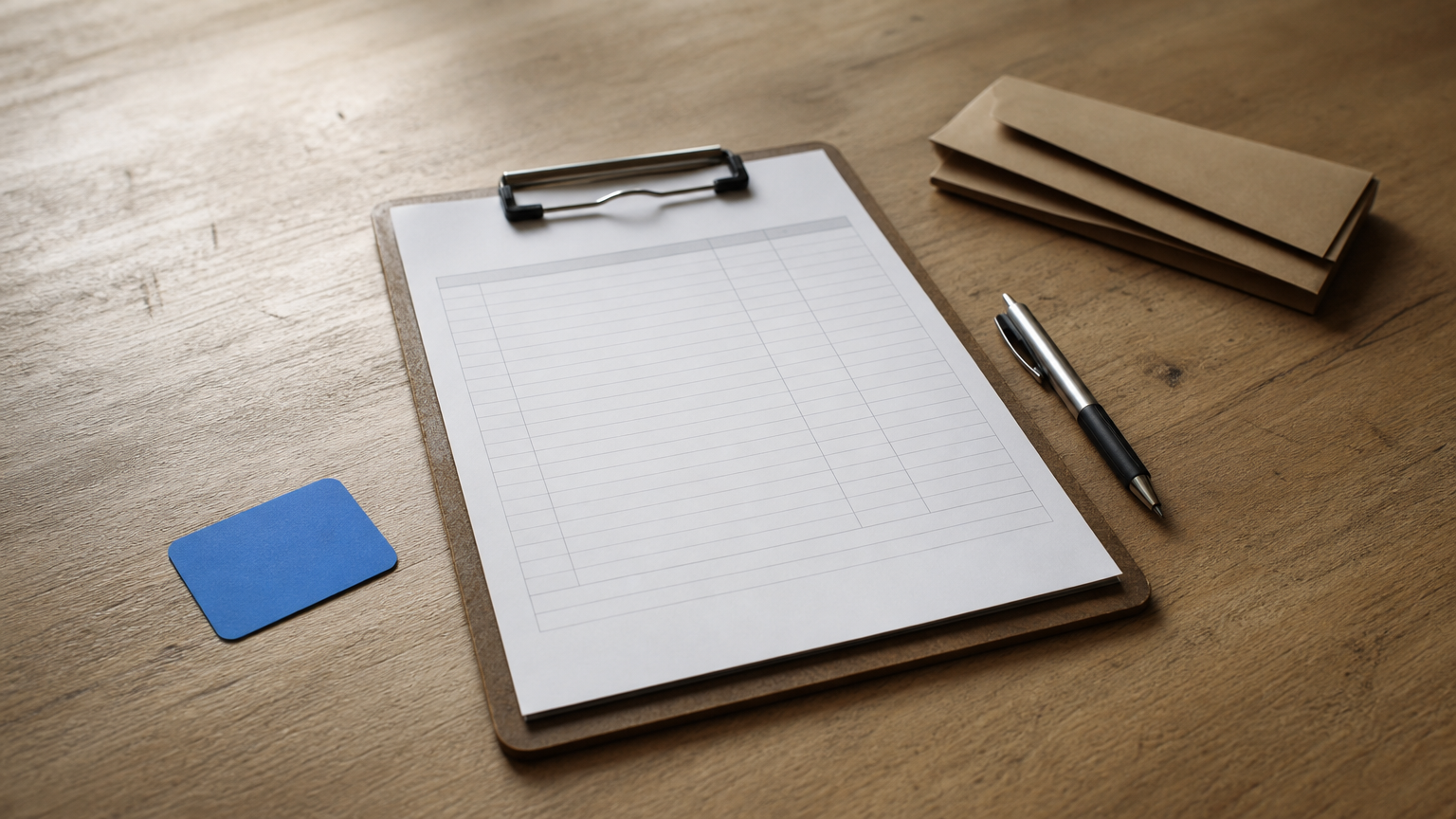
An invoice that gets paid has eight parts: your details, the client’s details, a unique number, two dates, itemized charges, a total, and payment instructions. Build these into your Google Docs invoice template once, and every later invoice is a copy.
What to include on every invoice
Skipping a field is the usual reason an invoice stalls. A vague due date or a missing PO number gives a client’s accounts team a reason to send it back. Treat this list as your build checklist.
- Your business name, address, email, phone, and logo
- Client name, company, and billing address
- A unique invoice number, such as INV-2026-001
- Issue date and due date
- Line items with description, quantity, rate, and amount
- Subtotal, discount, sales tax, and total due
- Payment instructions: bank details, PayPal address, or who to make a check out to
- Notes: late-fee terms, a thank-you line, a PO or project reference
Google Docs or Google Sheets
Pick Docs when you bill a flat fee or a handful of lines and want full control of the look. Pick Sheets when you bill by the hour, charge tax, or list many items, because formulas do the math for you.
| Google Docs | Google Sheets | |
|---|---|---|
| Best for | Few line items, custom look | Many items, automatic totals |
| Totals | Typed by hand | Calculated by formulas |
| Layout control | Easy | Fiddlier |
| Reuse | File > Make a copy | File > Make a copy |
| Export | PDF, Word | PDF, Excel |
The same split applies to files you download elsewhere. Layout-style invoices work best in Docs, and anything that calculates belongs in Sheets.
Build the invoice once with all eight parts, and every later invoice is a copy, not a rebuild.
Step 1. Get a template into Google Drive
Google Docs has no built-in invoice in its template gallery, so you have two practical routes: upload a finished Word invoice and open it in Docs, or build one from a blank document. Either way, you end up with a Google Docs invoice template saved in your Drive.
Upload a Word invoice and convert it
This is the fastest route if you want a polished layout without designing anything. Unique Printable offers free invoice templates, including hourly, consultant, painting, and cleaning service versions, with no sign-up needed. Follow these steps:
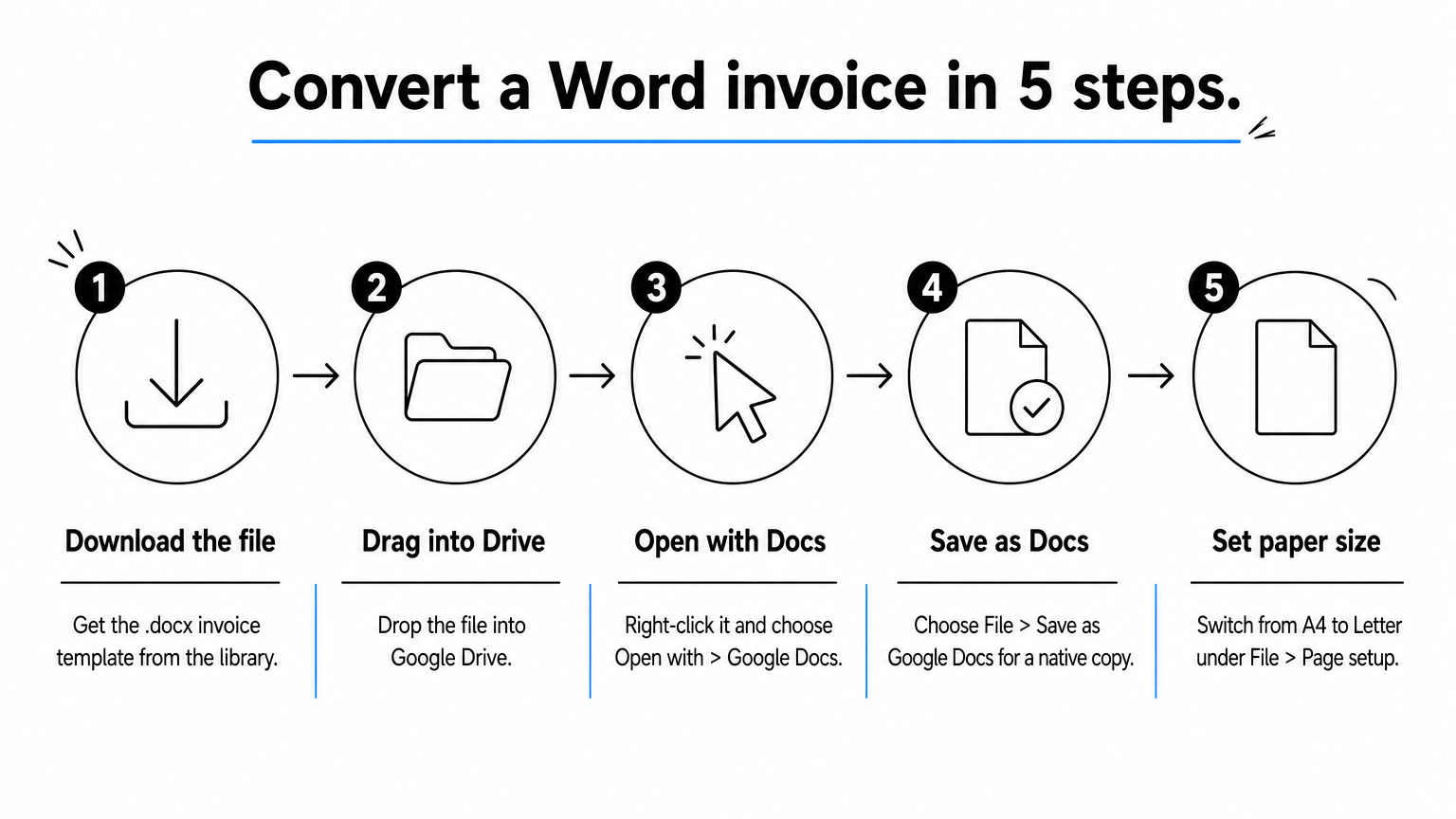
- Download the .docx invoice template.
- Drag the file into Google Drive.
- Right-click it, choose Open with > Google Docs.
- Choose File > Save as Google Docs so you have a native copy.
- Switch the paper size under File > Page setup. Unique Printable files default to A4, and US businesses will want Letter.
Check the tables and fonts after conversion. Complex formatting occasionally shifts, and a quick scroll catches it before a client does.
Build one from a blank document
Open a new Doc and use Insert > Table to create three blocks: a header table (logo, invoice number, dates), an items table with four columns, and a totals table. Paste this layout as your starting text, then convert the item lines into the table.
INVOICE
Invoice number: INV-2026-001
Issue date: [date]
Due date: [date]

From: [Your business name, address, email, phone]
Bill to: [Client name, company, billing address]

Description | Qty | Rate | Amount
[Service or product] | [0] | $[0.00] | $[0.00]

Subtotal: $[0.00]
Discount: $[0.00]
Sales tax ([rate]%): $[0.00]
Total due: $[0.00]

Payment instructions: [bank, PayPal, or check payee]
Notes: [late-fee terms, thank-you line]
No built-in invoice exists in Docs, so upload a Word file or build a three-table layout in ten minutes.
Step 2. Add your business and client details
Fill in everything that never changes first: your logo, business name, address, contact details, and payment instructions. Then leave the client and invoice fields as clear placeholders, so the file works as a reusable invoice template in Google Docs.
Set up the header and payment details
Insert your logo with Insert > Image > Upload from computer, and keep it small, around one inch tall. Use one font, such as Arial or Roboto, and one accent color for headings. Plain and consistent looks more professional than busy.
Put your payment instructions in the footer area, not buried in notes. Clients scan for "how do I pay" first. List every method you accept, with account details or the payee name for checks.
Number and date every invoice
Use a numbering pattern you can sustain, such as INV-2026-001, then 002, 003. Never reuse a number. Duplicate numbers cause confusion in your records and in your client’s.
Set the due date with a standard term. Spell it out as "Net 30" and also write the actual date.
| Term | Meaning | Example (issued Nov 12, 2026) |
|---|---|---|
| Due on receipt | Pay immediately | Nov 12, 2026 |
| Net 15 | Pay within 15 days | Nov 27, 2026 |
| Net 30 | Pay within 30 days | Dec 12, 2026 |
If you charge a late fee, state the rate and the start date on the invoice, and in your agreement before work begins. Limits on late fees vary by state, so check yours.
Save the master copy
Rename the file "Invoice master" and move it into a Drive folder called Invoices. Never edit it directly. For each job, open it and choose File > Make a copy, then rename the copy with the number and client, such as "INV-2026-014 Harbor Dental."
Edit the copy, never the master, and your template stays clean for the next client.
Step 3. Add line items and check the total
Give each charge its own row with a description, quantity, rate, and amount. Then calculate the subtotal, apply any discount, add tax, and state the total due. Whether you use a Google doc template invoice or a spreadsheet, the math is the same.
Work through an example
Say you billed 10 hours of web design at $75 an hour, plus one $40 stock photo license, with 6% sales tax on the lot. Check the figures against your own jurisdiction, because whether services are taxable depends on your state.
| Description | Qty | Rate | Amount |
|---|---|---|---|
| Web design, homepage layout | 10 hrs | $75.00 | $750.00 |
| Stock photo license | 1 | $40.00 | $40.00 |
| Subtotal | $790.00 | ||
| Sales tax (6%) | $47.40 | ||
| Total due | $837.40 |
Write descriptions that a client’s accountant can match to a quote or contract. "Homepage layout, Oct 20 to Nov 3" beats "Design work." If you charge by the hour, a dated description makes disputes rare.
Let Google Sheets do the math
In Docs, you type every total by hand, so recheck each figure before sending. If your invoices include tax or many lines, a Google Sheets invoice template removes that risk. Put descriptions in column A, quantity in B, rate in C, and amount in D, then use these formulas:
D2:   =B2*C2
D9:   =SUM(D2:D8)
D10:  =D9*0.06
D11:  =D9+D10
Here D9 is the subtotal, D10 the 6% tax, and D11 the total due. Copy the D2 formula down for each row, and the sheet recalculates whenever you change a quantity or rate. Unique Printable’s Excel invoices work this way, and they open in Sheets through Drive.
Type the subtotal by hand and you will eventually mistype it, so use formulas whenever an invoice has more than a few lines.
Step 4. Export, send, and track the invoice
Download the finished invoice as a PDF, email it with the invoice number in the subject line, and log it so you know when to follow up. A PDF cannot be edited by accident, which protects both you and the client.
Export the file
Choose File > Download > PDF document (.pdf). Need a Word version for a client who asks for one? Use File > Download > Microsoft Word (.docx). Open the PDF once before sending to confirm the table, logo, and totals landed on one clean page.
Sharing a link also works, but it carries risk. If you use the Share button, set the client to Viewer, not Editor, so nobody changes the numbers.
Send it with a clear message
Put the invoice number, amount, and due date in the email itself. Your client should not need to open the attachment to know what to do. Copy this template and adjust it.
Subject: Invoice INV-2026-014 from [Your business], due Dec 12, 2026

Hi [Name],

Attached is invoice INV-2026-014 for the homepage design project.
The total is $837.40, due Dec 12, 2026 (Net 30).

Payment details are at the bottom of the invoice. If you need a PO
number or a different billing contact on the invoice, reply and I
will send a corrected copy today.

Thank you,
[Your name]
Track what you have sent
Keep a simple Google Sheet with five columns: invoice number, client, amount, due date, and status. Update the status when payment arrives. Check it weekly, and send a friendly reminder the day after any due date passes. A single log shows your outstanding balance at a glance and stops invoices from slipping through.
An invoice is not finished when you send it, only when the payment arrives and the log says so.
Your next invoice takes two minutes
A solid Google Docs invoice comes down to one master file with all eight parts, a unique number and clear due date on every copy, accurate totals, and a PDF with a clear email. Docs suits simple jobs, Sheets suits math-heavy ones, and both live free in your Drive.
If you would rather start from a finished layout, browse the editable free invoice templates at Unique Printable. Download one, open it in Google Docs or Sheets, add your logo and details, and save it as your master.