The best sample payslip template Excel file does three things. It separates earnings from deductions, it calculates gross and net pay with formulas, and it prints cleanly on one page. If you pay one or two salaried employees, start with the basic layout in item 1. Hourly crews need item 2. Larger teams get the most from items 4 and 5, which add year-to-date totals and a pick-an-employee dropdown.
Most people searching for a salary slip template in Excel hit the same problems. They find blank grids, no filled-in example, and no explanation of which formulas to use or which deductions belong on the slip. This article starts with a worked sample, then walks through six layouts. Each one comes with its fields, a cell map, the formulas, and the kind of employer it suits.
At Unique Printable we publish free, editable document templates, including salary slips, so we know what makes a pay document easy to fill in and print. You will get everything you need to build each version in one sitting.
What a filled-in sample payslip looks like
A filled-in payslip shows one pay period: who was paid, what they earned, what was taken out, and the net amount. The sample below covers a salaried US employee paid biweekly, and every layout later in this article is a variation of it.

Fields every payslip should show
A complete payslip carries the same blocks no matter who designs it. Put your employer name and address at the top, then the employee name and ID, so the slip can be matched to your records.
- Pay period dates and the pay date
- Each earnings line (base pay, overtime, bonus, allowances)
- Each deduction on its own line, never one lump sum
- Gross pay, total deductions and net pay
- Year-to-date totals, if you want a slip that works as proof of income
No federal law requires employers to hand out pay stubs, but many states do, so check your state labor department’s rules. Federal rules also require you to keep payroll records for at least three years, so save a PDF of every slip by employee and pay date.
Sample payslip with real numbers
Here is the sample. The federal and state withholding figures are illustrative. Use the withholding tables in IRS Publication 15 or your payroll software for real amounts.
| Line | How it is filled | Amount |
|---|---|---|
| Base salary | Typed | $1,850.00 |
| Bonus | Typed | $150.00 |
| Gross pay | Sum of earnings | $2,000.00 |
| Federal income tax | Typed from withholding | $180.00 |
| State income tax | Typed from withholding | $60.00 |
| Social Security | 6.2% of gross | $124.00 |
| Medicare | 1.45% of gross | $29.00 |
| Total deductions | Sum of deductions | $393.00 |
| Net pay | Gross minus deductions | $1,607.00 |
Income tax withholding depends on each employee’s W-4, so type it in. Social Security and Medicare are flat rates, so let Excel calculate them. The employer also pays a matching 6.2% and 1.45%, but that cost never appears as a deduction from the employee.
A payslip is only as good as its arithmetic, so let formulas do the sums and type only what you cannot calculate.
1. Basic salary slip with automatic net pay
This is the right pick if you have one to ten salaried employees with fixed pay each period. It is the sample above built as a live sheet. You type earnings and tax withholding, and Excel handles the rest.
What it includes
The sheet has three blocks: a header with company and employee details in rows 1 to 6, earnings above, and deductions below. Keep the layout in one narrow column so it prints well on US Letter or A4. Use this cell map:
- B8 base salary, B9 bonus or allowance
- B10 gross pay
- B12 federal tax, B13 state tax, B14 Social Security, B15 Medicare
- B16 total deductions, B17 net pay
Put every number in column B and every label in column A, and your formulas stay short enough to audit at a glance.
How to set it up
Enter these formulas. Federal and state tax stay as typed inputs.
B10: =SUM(B8:B9)
B14: =ROUND(B10*0.062,2)
B15: =ROUND(B10*0.0145,2)
B16: =SUM(B12:B15)
B17: =B10-B16
Before you share the file, unlock the input cells under Format Cells, Protection, then choose Review, Protect Sheet. Nobody can then overwrite a formula by accident. Under Page Layout, set the print area and choose Fit to 1 page. Social Security applies only up to an annual wage base, so check the current limit with the IRS or SSA and adjust the formula for high earners.
2. Hourly payslip with overtime
An hourly payslip suits shops, crews and part-time rosters where hours change every period. It multiplies hours by rate and shows overtime on its own line, so employees can verify their pay.

What it includes
Add an hours block above the earnings: a multiplier cell, regular hours, hourly rate and overtime hours. Take this example. An employee works 80 regular hours at $20.00 and 6 overtime hours at 1.5 times the rate. Regular pay is $1,600.00, overtime is $180.00, and gross pay is $1,780.00.
Under the Fair Labor Standards Act, covered nonexempt employees get at least 1.5 times their regular rate for hours over 40 in a workweek. Count overtime per workweek, not per pay period. Some states add daily overtime rules, so check yours.
Overtime is counted week by week, so a biweekly slip needs a separate overtime-hours entry, not total hours minus 80.
How to set it up
Use B4 for the multiplier, B5 for regular hours, B6 for the rate and B7 for overtime hours:
B8:  =B5*B6
B9:  =B7*B6*B4
B10: =SUM(B8:B9)
Keep the 1.5 in its own cell instead of burying it inside the formula. When a state rule or a union contract changes the multiplier, you change one cell. Then copy the deduction block from item 1 below the gross line.
3. Salary slip with allowances and side-by-side columns
Choose this layout if you pay allowances and want the classic salary slip format in Excel, with earnings on the left and deductions on the right. It is common in payroll offices in the UK, India and other Commonwealth countries, and it works equally well for US employers who pay housing, transport or meal allowances.
What it includes
Earnings sit in columns A and B, deductions in columns D and E, and both totals share one row so the eye reads across to the bottom line. This sample shows how it fills in:
| Earnings | Amount | Deductions | Amount |
|---|---|---|---|
| Basic salary | $3,000.00 | Income tax | $520.00 |
| Housing allowance | $600.00 | Retirement (5% of basic) | $150.00 |
| Transport allowance | $150.00 | Health insurance | $120.00 |
| Total earnings | $3,750.00 | Total deductions | $790.00 |
Net pay is $2,960.00. Leave one spare row on each side for items such as a loan repayment or a one-off reimbursement.
Side-by-side columns work because gross, deductions and net pay all land in one scannable row at the bottom.
How to set it up
With earnings in rows 8 to 10 and deductions in the same rows:
B11: =SUM(B8:B10)
E9:  =ROUND(B8*0.05,2)
E11: =SUM(E8:E10)
B13: =B11-E11
If a recipient needs this as a salary slip format in XLS for an older Excel, use File, Save As, and pick Excel 97-2003 Workbook. These formulas all survive the older format.
4. Payslip with year-to-date totals
This version suits any employer whose staff need proof of income, because lenders and landlords look at running totals. It adds a pay log, so each slip shows what was earned and withheld so far this year.
What it includes
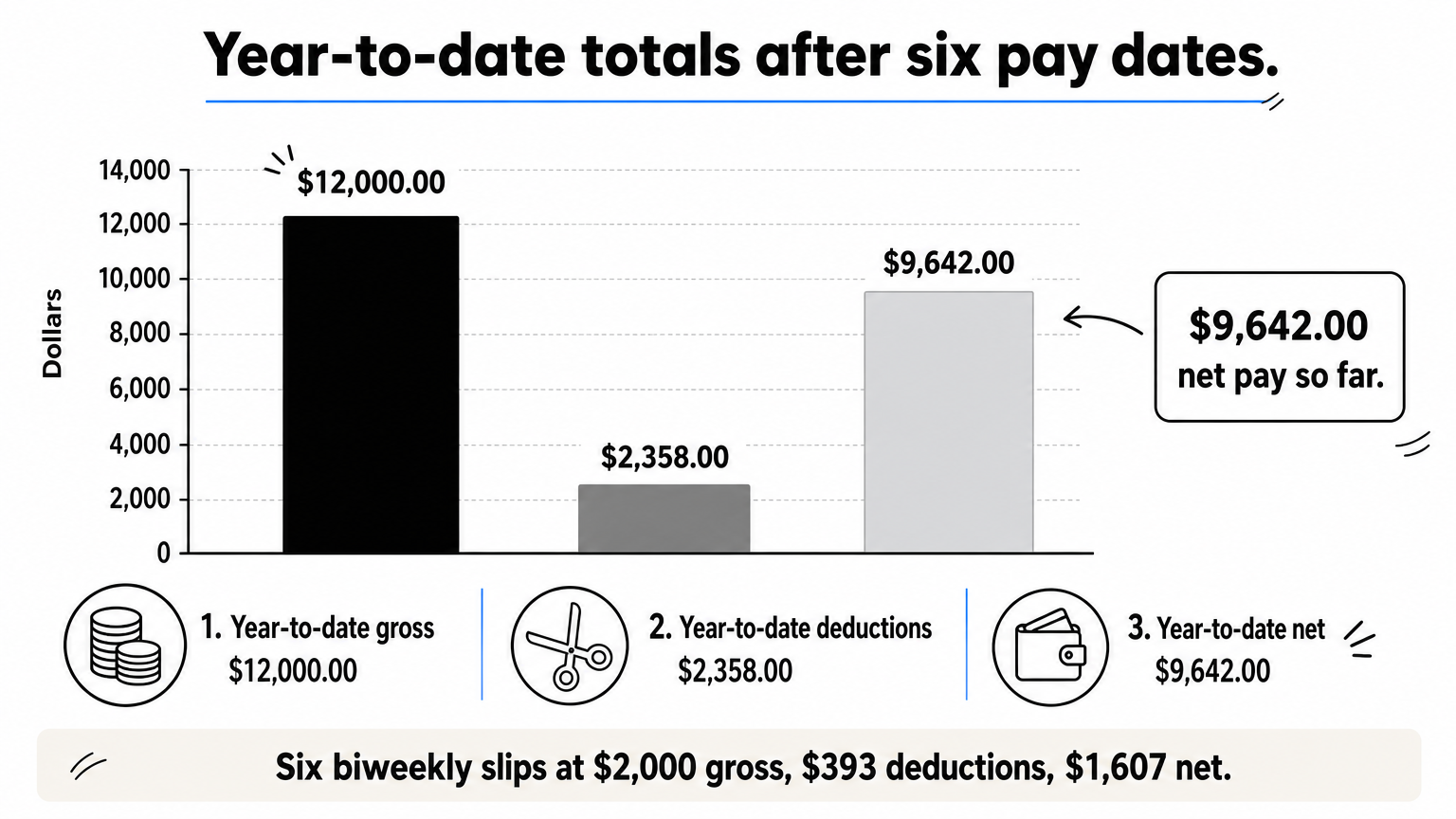
You need two sheets. The PayLog sheet holds one row per employee per pay date: employee ID in column A, pay date in B, gross in C, deductions in D, net in E. The payslip sheet reads from it. After six biweekly pay dates at $2,000 gross, $393 deductions and $1,607 net, the slip shows:
- Year-to-date gross: $12,000.00
- Year-to-date deductions: $2,358.00
- Year-to-date net: $9,642.00
Year-to-date figures depend on the pay date, not the last day of the work period, so log the date the money actually moved.
How to set it up
Put the employee ID in B3 and the pay date in B4 of the slip. Then use SUMIFS to total everything from January 1 up to that pay date:
=SUMIFS(PayLog!$C:$C,PayLog!$A:$A,$B$3,PayLog!$B:$B,">="&DATE(YEAR($B$4),1,1),PayLog!$B:$B,"<="&$B$4)
Copy the formula into the deductions and net cells, changing only the column letter, C to D or E. US payroll follows the calendar year, and a paycheck dated January 2 counts toward the new year even if the work happened in December. If you change the tax year start for another country, replace the DATE(YEAR($B$4),1,1) part.
5. Automated payslip that pulls from an employee list
An automated payslip fits teams of ten or more people. You pick an employee from a dropdown and the whole slip fills itself, so you stop retyping names and pay rates every payday.
What it includes
An Employees sheet holds one row per person: ID in column A, name in B, job title in C, pay per period in D. The payslip sheet has a dropdown in B3 that looks everything else up. Every slip comes out identical, and a typo fixed once on the Employees sheet is fixed on every future slip.
- Dropdown built with Data Validation
- Name, title and base pay pulled by lookup
- Deductions and net pay calculated as in item 1
- One PDF per employee, named with employee and pay date
Store each fact once on the Employees sheet and look it up everywhere else, so a correction never needs to be repeated.
How to set it up
Under Data, Data Validation, choose List and set the source to =Employees!$A$2:$A$50. Then enter the lookups:
B4: =XLOOKUP($B$3,Employees!$A:$A,Employees!$B:$B)
B5: =VLOOKUP($B$3,Employees!$A:$D,3,FALSE)
B8: =VLOOKUP($B$3,Employees!$A:$D,4,FALSE)
XLOOKUP needs Excel 2021 or Microsoft 365. VLOOKUP works in every version. If you must save this as a payslip template XLS for Excel 2003, use VLOOKUP only, because the older format does not support newer functions. To print a run, change the dropdown, choose Print, Save as PDF, and repeat. Avoid macros unless you are comfortable with .xlsm files, since many email systems block them.
6. Word salary slip fed by an Excel calculation sheet
This option suits employers who want a polished, branded slip but do not want to design in Excel. Excel does the math, and a Word template becomes the printed page. Unique Printable offers 10 free salary slip templates in MS Word with an editable company header, earnings rows, deduction rows and net pay.
What it includes
The Word files are free to use for paying staff in any business, with no sign-up, though you cannot resell the template files. They open in Google Docs through Google Drive and in LibreOffice. They are set to A4 by default, so switch to US Letter under Page Setup before printing.
- Editable company header for your logo and business name
- Earnings rows and deduction rows you can rename
- A net pay line
- Excel from item 1 as your calculator
Word has no formulas, so a slip that is typed by hand is only as accurate as the sheet you copied it from.
How to set it up
Follow these steps once, then reuse the master copy every pay period:
- Build the item 1 sheet and use it only as a calculator.
- Open your chosen salary slip template, add your logo and company name, and save it as a master copy.
- Copy gross pay, each deduction and net pay from Excel into the Word rows.
- Use Save As for each employee and pay date, then export to PDF.
- Check that the net pay in Word matches the Excel total before you send it.
Pick one layout and start building
For one or two salaried employees, build the basic layout in item 1 and you are done. Add overtime when hours vary, side-by-side allowances when pay has several parts, and year-to-date totals when staff need proof of income. Once you pass ten employees, the dropdown version saves the most time. Whatever you choose, show every deduction on its own line, let formulas do the sums, and keep a PDF of every slip.
If you would rather start from a finished page layout than a blank grid, browse the free salary slip templates in Word, then pair them with the Excel calculator from item 1.